
How to Transfer Microsoft Office to a New Computer in 2026
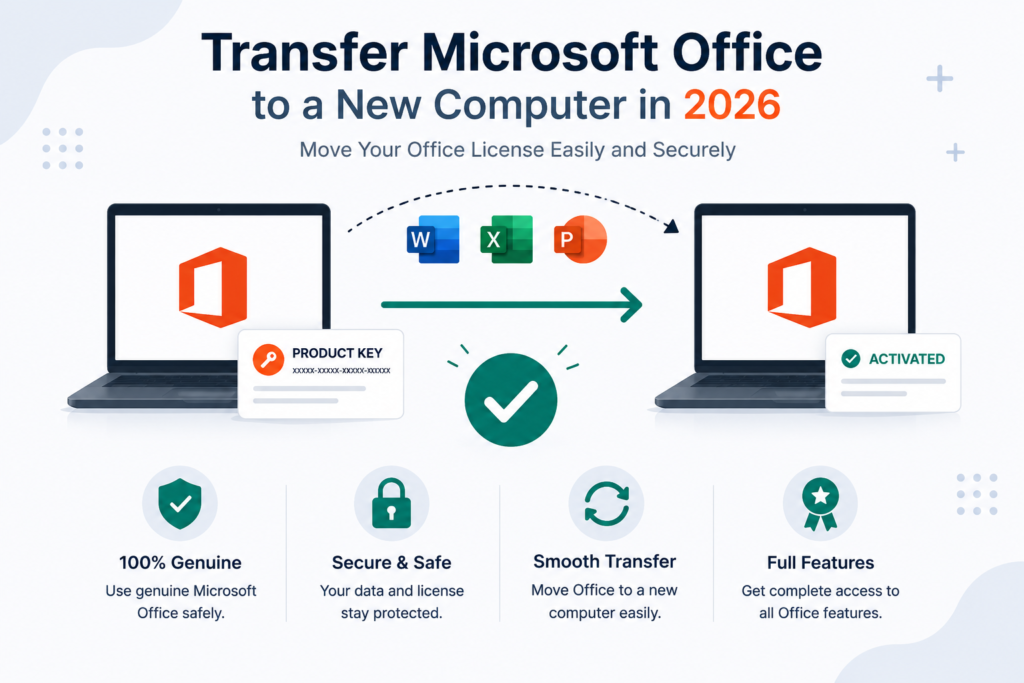
Upgrading to a new computer is exciting, but many users worry about whether they can move their Microsoft Office license without purchasing it again. The answer depends on the type of Office license you own.
Some Microsoft Office licenses can be transferred to another PC with just a few simple steps, while others are permanently linked to the original device. Understanding the difference can help you avoid activation errors and unnecessary expenses.
In this guide, you’ll learn how to transfer Microsoft Office to a new computer, identify your license type, and solve common activation problems in 2026.
Quick Answer
You can transfer Microsoft Office to a new computer if your license is transferable.
In general:
- ✅ Retail licenses can usually be transferred.
- ❌ OEM licenses cannot be moved to another computer.
- ✅ Microsoft 365 subscriptions simply require signing in with your Microsoft account.
Before installing Office on your new PC, make sure it is removed or deactivated from the old device if your license requires it.
Can You Transfer Microsoft Office to a New Computer?
Yes, but not every Microsoft Office license allows transfers. Microsoft offers several licensing options, each with different activation rules.
If your Office license is linked to your Microsoft account or purchased as a retail version, transferring it is usually straightforward. However, licenses that came pre-installed on a computer are generally locked to that device.
The first step is identifying which type of license you currently own.
Understanding Microsoft Office License Types
Retail License
A Retail license is the most flexible option. It is purchased separately from a computer and can normally be transferred to another device, provided it is no longer being used on the previous one.
Best for: Home users, professionals, and anyone who upgrades their PC regularly.
OEM License
An OEM (Original Equipment Manufacturer) license is supplied with a new computer by the manufacturer. Once activated, it becomes permanently associated with that device and cannot legally be transferred to another computer.
Best for: Users who plan to keep the same computer for the life of the license.
Microsoft 365 Subscription
Microsoft 365 works differently from perpetual licenses. Because the subscription is connected to your Microsoft account, you simply sign in on your new computer, install Office, and activate it. Managing your devices can also be done from your Microsoft account dashboard.
License Comparison
| License Type | Transferable? | Activation Method |
|---|---|---|
| Retail | Yes | Product Key or Microsoft Account |
| OEM | No | Locked to Original Device |
| Microsoft 365 | Yes | Microsoft Account |
How to Transfer Microsoft Office to a New Computer
Step 1 — Remove Office from Your Old Computer
Before activating Microsoft Office on your new PC, uninstall it from your old computer whenever required by your license. This helps prevent activation conflicts.
Step 2 — Check Your Microsoft Account
If your Office license is linked to a Microsoft account, sign in and verify that the license appears under your services and subscriptions.
Step 3 — Install Office on the New Computer
Download the appropriate Office version, complete the installation, and follow the setup instructions.
Step 4 — Activate Your License
Activate Microsoft Office using your Microsoft account or your product key, depending on your license type. Once activation is complete, your Office applications will be ready to use.
Common Problems When Transferring Microsoft Office
Although transferring Microsoft Office is usually a simple process, some users may encounter activation or installation issues after moving to a new computer. Understanding these common problems can help you resolve them quickly.
- Activation fails after installing Office on the new PC.
- The product key has already been used on another device.
- The Microsoft account linked to the license is forgotten.
- The installed Office edition doesn’t match the purchased license.
- The license is an OEM version that cannot be transferred.
In many situations, these issues can be fixed by signing in with the correct Microsoft account, reinstalling the correct Office edition, or reactivating the license. If the license isn’t transferable, purchasing a new genuine license may be the best solution.
What If Your Office License Can’t Be Transferred?
If your Microsoft Office license is permanently linked to your old computer, transferring it won’t be possible. This is most common with OEM licenses that come pre-installed on a new PC.
In this situation, purchasing a new genuine Microsoft Office license is the easiest and safest solution. A new license gives you full access to Office applications, proper activation, and long-term reliability without licensing conflicts.
Can You Transfer Microsoft Office More Than Once?
The answer depends on the license you own.
Retail licenses can usually be transferred multiple times, provided the software is only activated on one computer at a time. Before moving Office again, simply uninstall or deactivate it from the previous device.
Microsoft 365 subscriptions are even more flexible. Since they are linked to your Microsoft account, you can install Office on supported devices and manage activations directly from your account dashboard.
OEM licenses, however, remain permanently tied to the original computer and cannot be transferred to another device
Tips for a Smooth Transfer
- Verify your license type before starting.
- Keep your Microsoft account credentials available.
- Back up important Office documents before switching computers.
- Install the same Office edition that matches your license.
- Use only genuine Microsoft product keys.
Frequently Asked Questions
Can I transfer Microsoft Office to a new computer for free?
Yes, if you have a Retail license or a Microsoft 365 subscription. OEM licenses cannot be transferred.
Will I lose my files when moving Microsoft Office?
No. Your Office applications and your personal documents are separate. However, it’s always a good idea to back up important files before changing computers.
How do I know which Office license I have?
You can check your Microsoft account, your purchase confirmation, or the activation information within Office to determine whether your license is Retail, OEM, or Microsoft 365.
Do I need to uninstall Office from my old computer?
For Retail licenses, uninstalling Office from the previous device is recommended before activating it on your new computer to comply with Microsoft’s licensing terms.
What happens if activation doesn’t work?
Double-check that you’re using the correct Microsoft account or product key. If the problem continues, your license may not be eligible for transfer or you may need assistance from Microsoft support.
Final Verdict
Transferring Microsoft Office to a new computer is often a straightforward process, but the success of the transfer depends entirely on your license type. Retail licenses and Microsoft 365 subscriptions offer flexibility, while OEM licenses are designed to remain on the original device.
Before moving Office, verify your license, back up your important files, and follow the correct activation steps. Taking a few minutes to prepare can save time and prevent activation problems later
Where to Buy a Genuine Microsoft Office License
If your current Office license cannot be transferred or you’re setting up a new computer, purchasing a genuine Microsoft Office license is the best way to ensure a smooth experience.
Keyses offers authentic Microsoft Office licenses with competitive pricing, fast digital delivery, and responsive customer support. Whether you need Office 2021, Office 2024, or a Microsoft 365 subscription, you can choose the solution that best fits your personal or business needs.
Conclusion
Moving Microsoft Office to a new computer doesn’t have to be difficult. By understanding your license type and following the correct transfer process, you can continue using your Office applications without unnecessary interruptions.