
How to Use Microsoft Visio 2024: A Step-by-Step Beginner’s Guide
How to Use Microsoft Visio 2024
Microsoft Visio 2024 is a professional diagramming application that allows you to create flowcharts, organizational charts, network diagrams, floor plans, and many other visual diagrams. With ready-made templates and drag-and-drop shapes, even beginners can build professional diagrams in minutes.
In this beginner’s guide, you’ll learn how to use Microsoft Visio 2024 step by step, from opening the software to creating and sharing your first diagram.
Quick Overview
- Open Microsoft Visio 2024.
- Select the right template.
- Add shapes to the drawing canvas.
- Connect the shapes.
- Add text and formatting.
- Save or export your finished diagram.
What Is Microsoft Visio 2024?
Microsoft Visio 2024 is a desktop application designed to help users transform ideas, processes, and systems into clear visual diagrams. It includes built-in templates, professional shapes, automatic connectors, and formatting tools that make diagram creation simple and efficient.
Before You Start
- A Windows computer compatible with Visio 2024.
- Microsoft Visio 2024 installed.
- A valid Visio license or product key.
- Enough storage space for your projects.
How to Use Microsoft Visio 2024 (Step-by-Step)
Step 1 – Open Visio
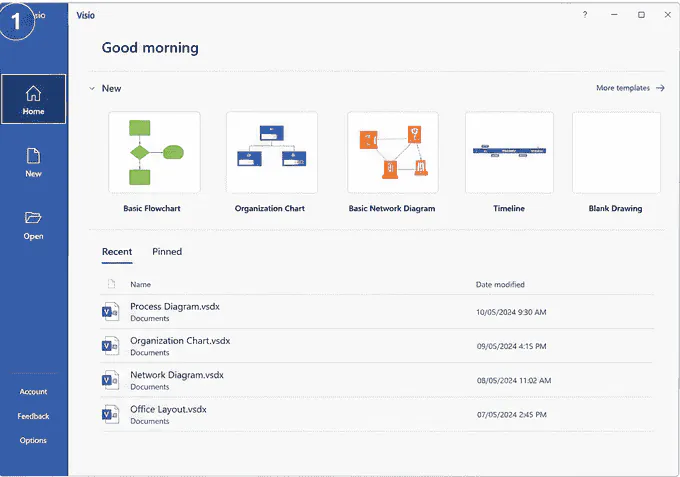
Launch Microsoft Visio 2024 from the Windows Start menu. The start screen displays available templates and your recent projects.
Step 2 – Choose a Template
Select a template that matches your project, such as a Flowchart, Organization Chart, Network Diagram, Timeline, or Blank Drawing.
Step 3 – Add Shapes
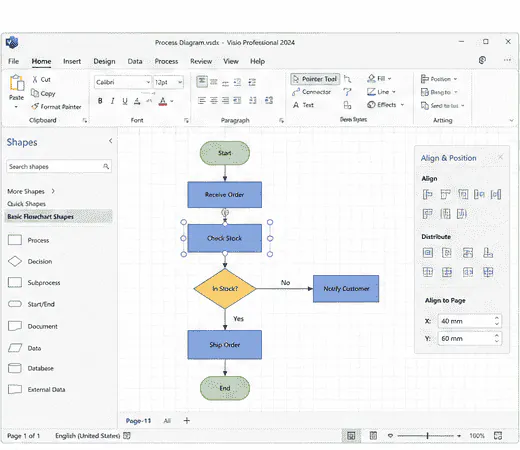
Drag shapes from the Shapes pane onto the drawing canvas. Arrange and resize them to create your diagram layout.
Step 4 – Connect the Shapes
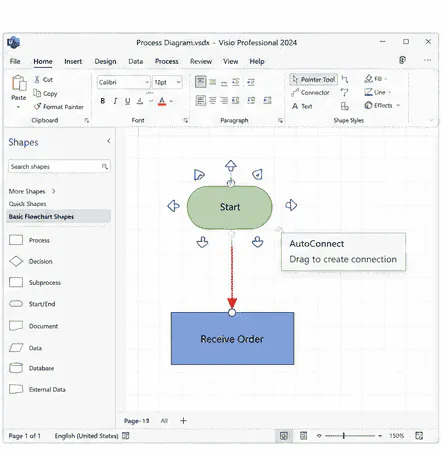
Use AutoConnect or the Connector tool to link shapes together and clearly display the flow or relationship between each step.
Step 5 – Add Text
Double-click any shape to add labels. Keep text short and descriptive so your diagram is easy to understand.
Step 6 – Format the Diagram
Customize colors, themes, fonts, and alignment to give your diagram a clean and professional appearance.
Step 7 – Save or Export
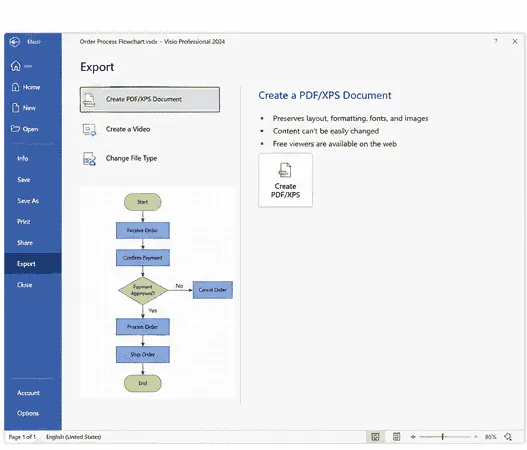
Save your project as a .vsdx file for future editing, or export it as a PDF or image to share with others.
Tips for Beginners
- Start with a ready-made template.
- Use consistent shapes and colors.
- Keep labels short and readable.
- Align shapes evenly for a cleaner layout.
- Export your diagram as a PDF before sharing.
Frequently Asked Questions
Is Microsoft Visio 2024 beginner-friendly?
Yes. Microsoft Visio 2024 offers templates, drag-and-drop shapes, and automatic connectors that make creating diagrams simple for beginners.
Can I export Visio diagrams to PDF?
Yes. You can export diagrams as PDF files or image formats like PNG and JPEG for easy sharing.
Does Visio 2024 come with Microsoft Office?
No. Microsoft Visio 2024 is sold separately from standard Microsoft Office applications.
Final Thoughts
Microsoft Visio 2024 is an excellent tool for creating professional diagrams, whether you’re designing flowcharts, network layouts, or business processes. By learning the basics and practicing with templates, you’ll quickly become comfortable creating clear and effective diagrams.