
How to Install Microsoft Office 2021 on Windows: Step-by-Step Guide (2026)
Installing Microsoft Office 2021 on a Windows PC is quick and straightforward when you follow the correct steps. Whether you’ve just purchased a genuine Office 2021 license or are setting up Office on a new computer, this guide will walk you through the complete installation and activation process.
By the end of this tutorial, you’ll have Microsoft Word, Excel, PowerPoint, Outlook, and the rest of the Office applications installed and ready to use.
Before You Begin
Before installing Microsoft Office 2021, make sure your Windows PC meets the minimum system requirements and has a stable internet connection. It’s also recommended to have your Office product key ready for activation.
Step 1 – Remove Any Existing Office Version
If your computer already has an older version of Microsoft Office installed, uninstall it before proceeding. Keeping multiple Office versions on the same computer may cause installation or activation conflicts.
You can remove the previous version using the Windows Control Panel or Microsoft’s official Office uninstall tool.
Step 2 – Download Microsoft Office 2021
Download the Microsoft Office 2021 installation package using the secure download link provided after your purchase. Once the download is complete, locate the installation file in your Downloads folder.
Tip: Make sure the download finishes completely before starting the installation.
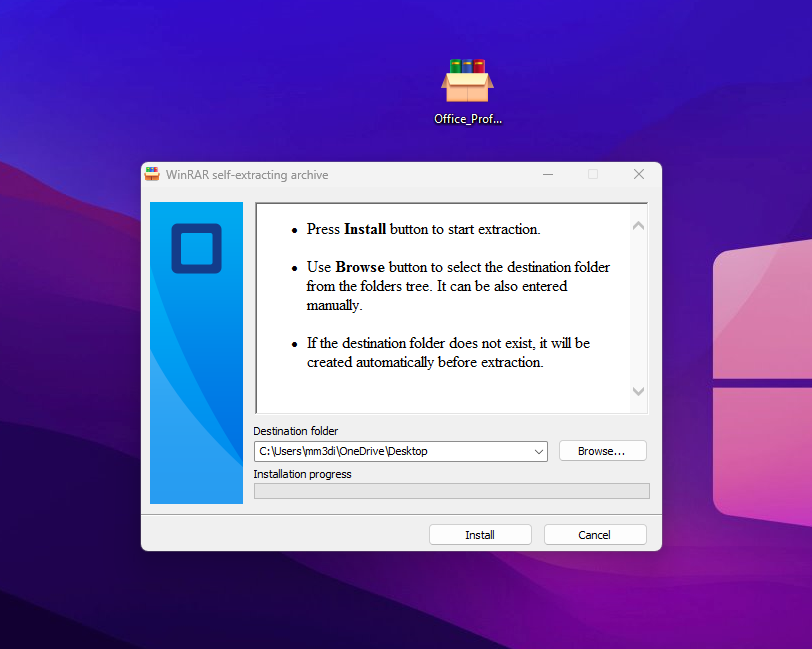
Step 3 – Install Microsoft Office 2021
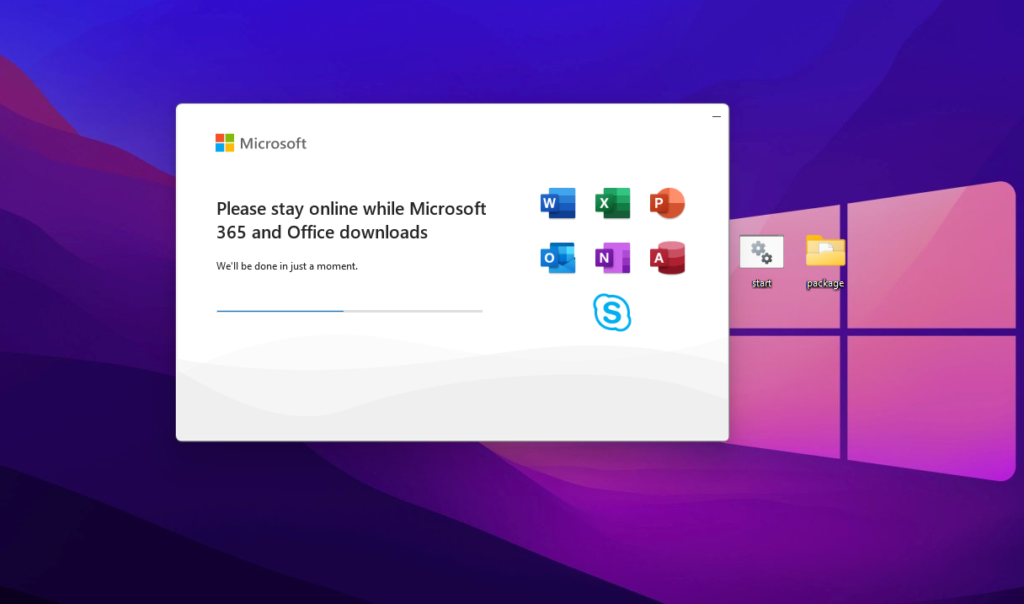
Double-click the installation file to launch the Office setup. The installer will automatically copy the required files and install all Office applications on your Windows computer.
Depending on your internet speed and computer performance, the installation may take several minutes.
During this process, avoid closing the installer until you receive the confirmation that the installation has finished successfully.
Step 4 – Open an Office Application
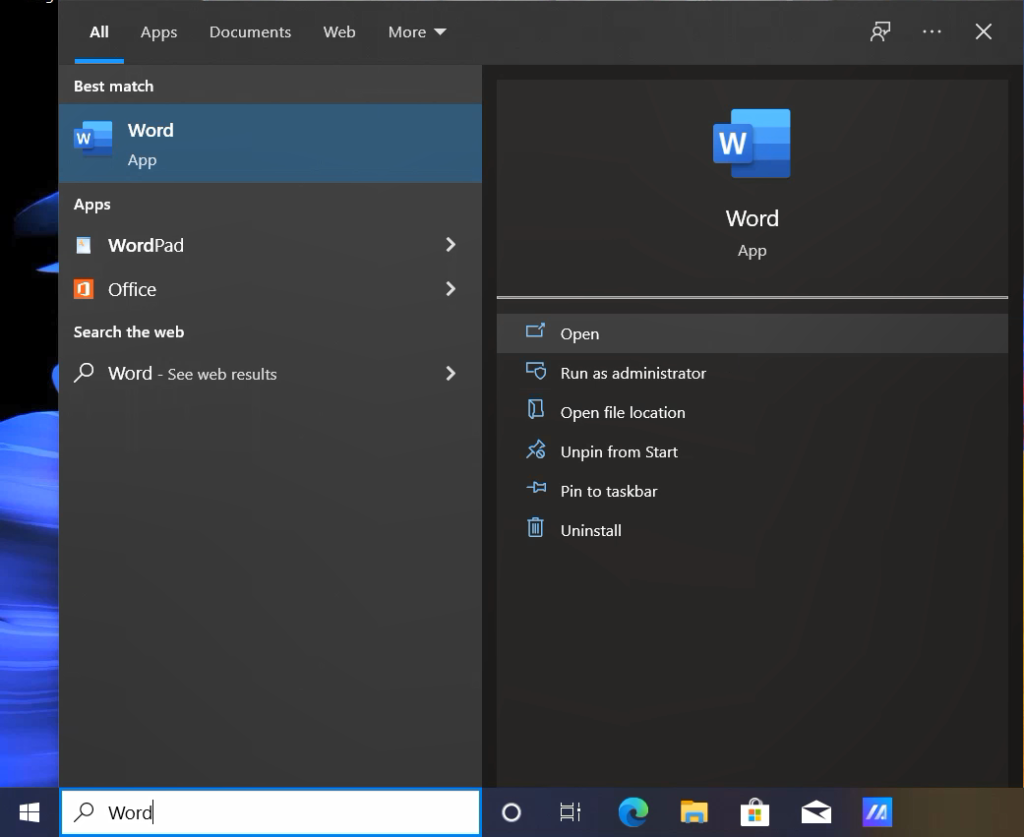
After installation is complete, open the Windows Start Menu and search for Word, Excel, or any Office application.
Launch the application, then navigate to:
File → Account
This section allows you to view your Office license information and activate the software.
Step 5 – Activate Microsoft Office 2021
To unlock all Office features, you’ll need to activate your license.
Inside the Account page:
- Click Change Product Key or Switch License.
- Enter the genuine Office 2021 product key you received after purchase.
- Follow the on-screen instructions to complete activation.
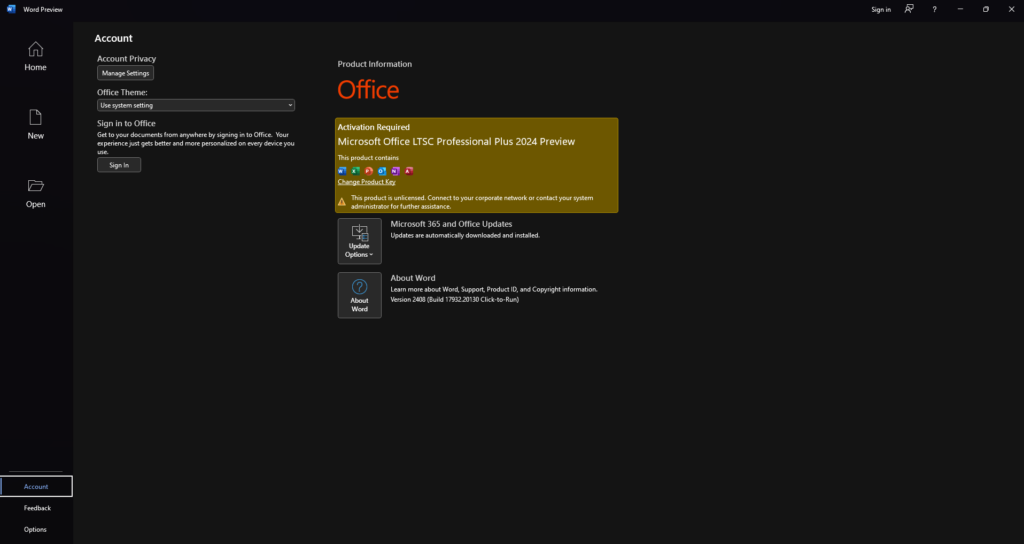
Once activated successfully, your Office applications will be fully licensed and ready to use.
Common Installation Problems
If Microsoft Office 2021 doesn’t install correctly, one of the following issues may be the cause:
- An older Office version wasn’t completely removed.
- Your internet connection was interrupted during installation.
- An incorrect Office edition was downloaded.
- The product key entered is invalid or already in use.
Most installation issues can be resolved by reinstalling Office or verifying that you’re using the correct activation key.
Need Help?
If you experience any installation or activation problems, our support team is ready to help.
Our specialists can assist you with downloading, installing, and activating Microsoft Office 2021 so you can start using your software without delays.
Frequently Asked Questions
Can I install Office 2021 without an internet connection?
No. An internet connection is required to download, install, and activate Microsoft Office 2021. Once activated, most Office applications can be used offline.
Can I reinstall Office 2021 later?
Yes. If your license allows it, you can reinstall Microsoft Office 2021 on the same device after reinstalling Windows or replacing your hard drive.
Do I need a Microsoft account?
Some Office licenses can be activated using only a product key, while others may require signing in with a Microsoft account.
Final Thoughts
Installing Microsoft Office 2021 on Windows is a simple process when you follow the correct steps. By uninstalling previous Office versions, downloading the correct installer, and activating your genuine product key, you can enjoy all Office applications without interruption.
Whether you’re installing Office for work, school, or personal use, following this guide will help you complete the setup quickly and avoid common activation issues.